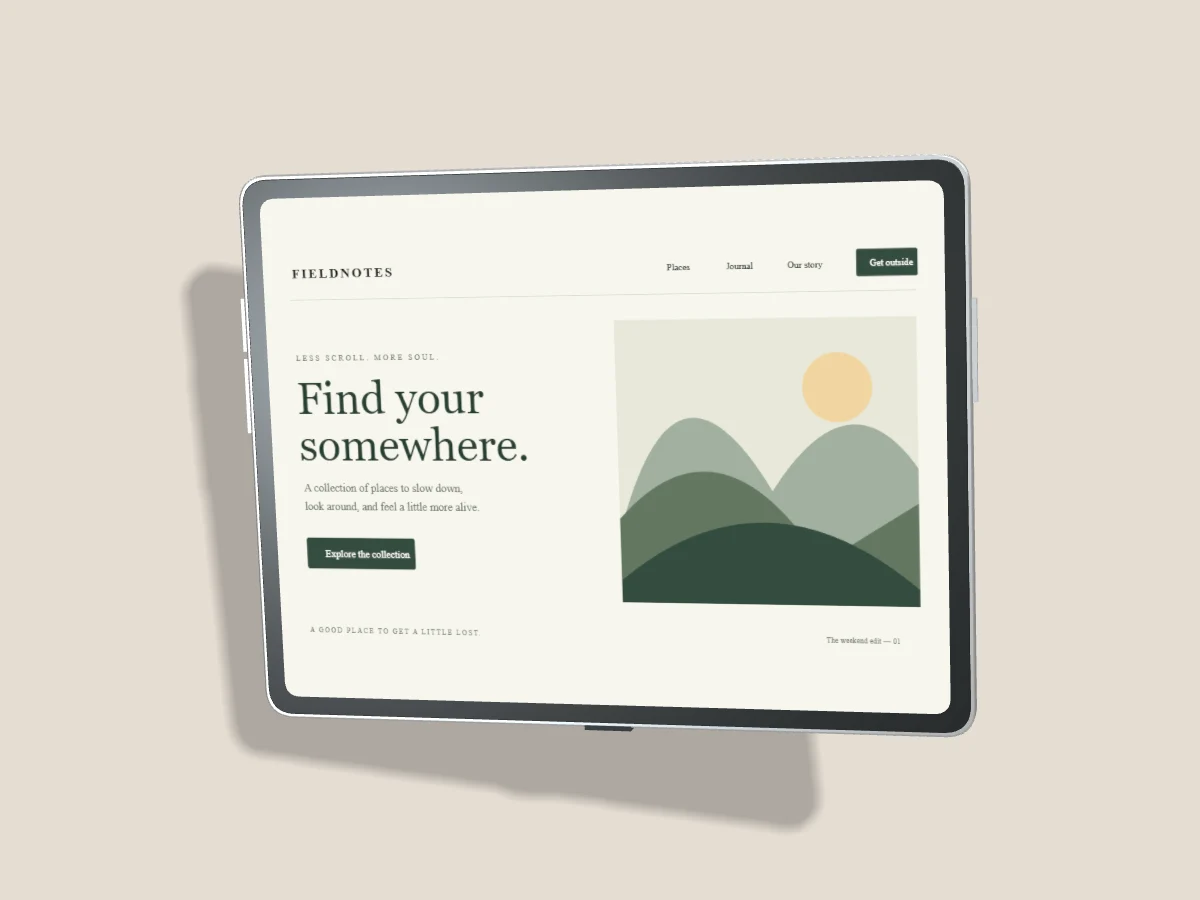
Tablet interfaces occupy a useful middle ground between a phone and a desktop. Their layouts often change with orientation, split views and available space. Choose a mockup orientation that reflects how the app is intended to be used, then capture that actual layout.
Portrait for reading and focused tasks
Portrait works well for documents, forms, long articles and focused editing. Keep a comfortable text width in the source interface. A screenshot that was designed for a phone may fill the display but still fail to show a credible tablet experience. Use the tablet version when it exists.
Landscape for broad workspaces
Landscape can explain a drawing canvas, media browser or dashboard with side navigation. Check the visible crop around toolbars and panels. A wide screenshot placed into a portrait device and rotated later may not reproduce the app's real responsive behavior.
Keep physical proportions consistent
Choose the iPad model, then its orientation in Device & style. The renderer updates the device proportions rather than stretching the screenshot to fit. Replace the screen after changing orientation if the source no longer suits the display. Fill and Fit let you choose between cropping and preserving the whole capture.
Compare companion experiences
Pair a tablet with a phone when both support the same user journey. Show the tablet's larger workspace and the phone's focused companion task. Leave a visible gap between the frames and use shared angle controls for a consistent studio setup. A smaller device should still be large enough to explain its role.
Review details at output size
Tablet displays can carry more content, but a small portfolio thumbnail cannot show every detail. Pick a meaningful region, simplify the surrounding composition and provide a larger detail image elsewhere. The iPad composition guide covers a broader workflow from upload to export.