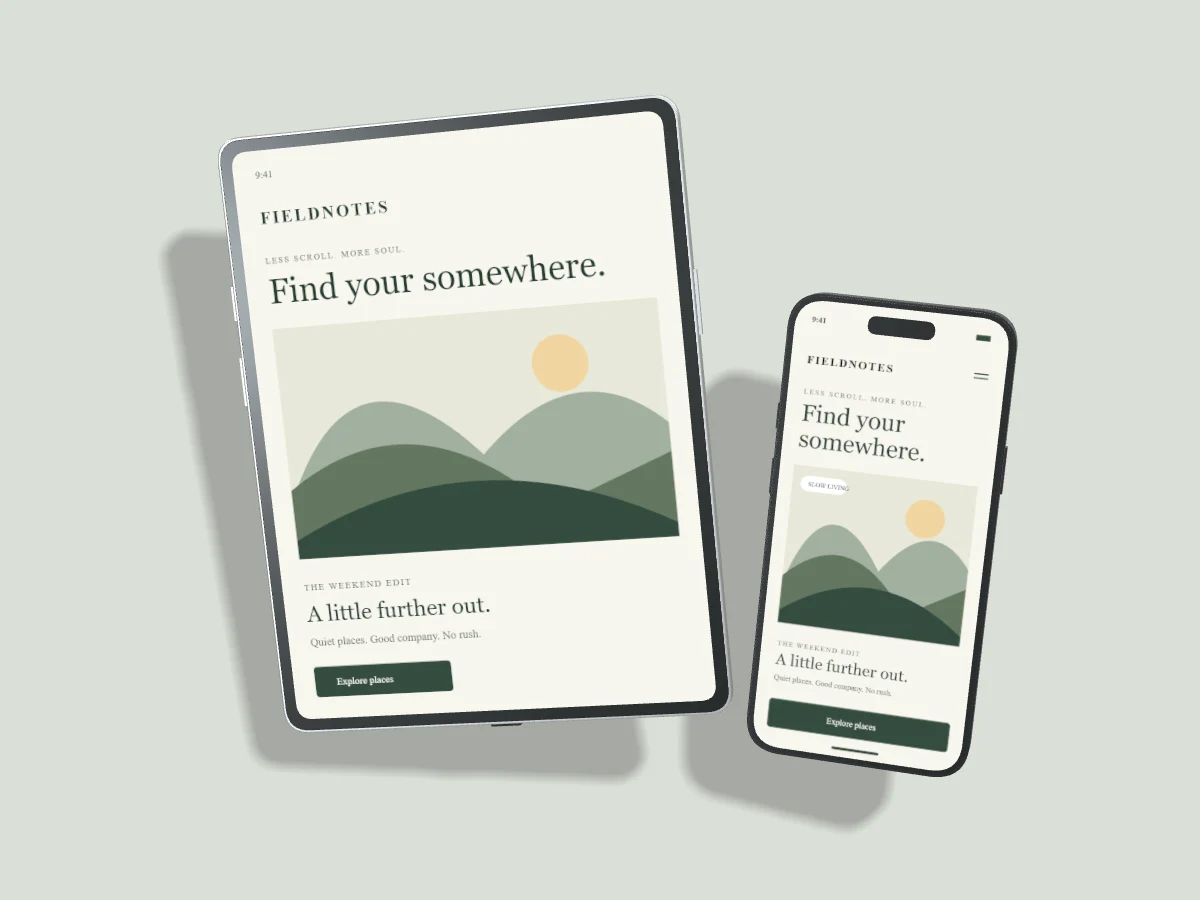
Tablet layouts often contain more than a larger phone interface. Navigation, sidebars and workspace tools deserve enough room to be understood. An iPad mockup helps communicate that layout while keeping a recognizable screen format.
Match the content to the orientation
Start with A larger canvas for a portrait presentation or Turn the page for landscape. The iPad Pro 11-inch and 13-inch models use different proportions. Choose the device first, then inspect how your screenshot fits its display. For a landscape screenshot, select Landscape in Tablet orientation and check the crop.
Use Fill when the screenshot was captured for that exact screen ratio. Use Fit when preserving the whole interface is more important than filling every edge. Adjust zoom and position with attention to navigation labels at the screen boundaries.
Show responsive behavior deliberately
Pocket to canvas pairs an iPad with an iPhone. Upload the tablet version to the iPad layer and the mobile version to the phone layer. Giving each device its own screenshot makes the result explain responsive design rather than repeating one image at two sizes.
Use a shared angle when the pair should feel like one product family. Enable Apply angle to all devices, select a front or side preset, then tune shadow direction. If one device needs to stay front-on, lock it before changing the other poses.
Keep presentation accessible
When the final image will appear in a blog, leave room for a text description in the surrounding page. Do not put essential instructions only inside a screenshot. Add useful alt text wherever you publish the mockup, describing the interface or result that matters to the reader.
Export and keep the right copy
PNG preserves fine interface details. WebP usually works well for website articles. A square or landscape composition fits many portfolio grids, while a portrait image gives a tablet more space on mobile.
The browser can recover a draft on this device. That recovery is local and may be cleared by the browser. Pro users can explicitly save a project to private cloud storage after integration setup. No plan autosaves to the cloud, and an export does not create a saved project.