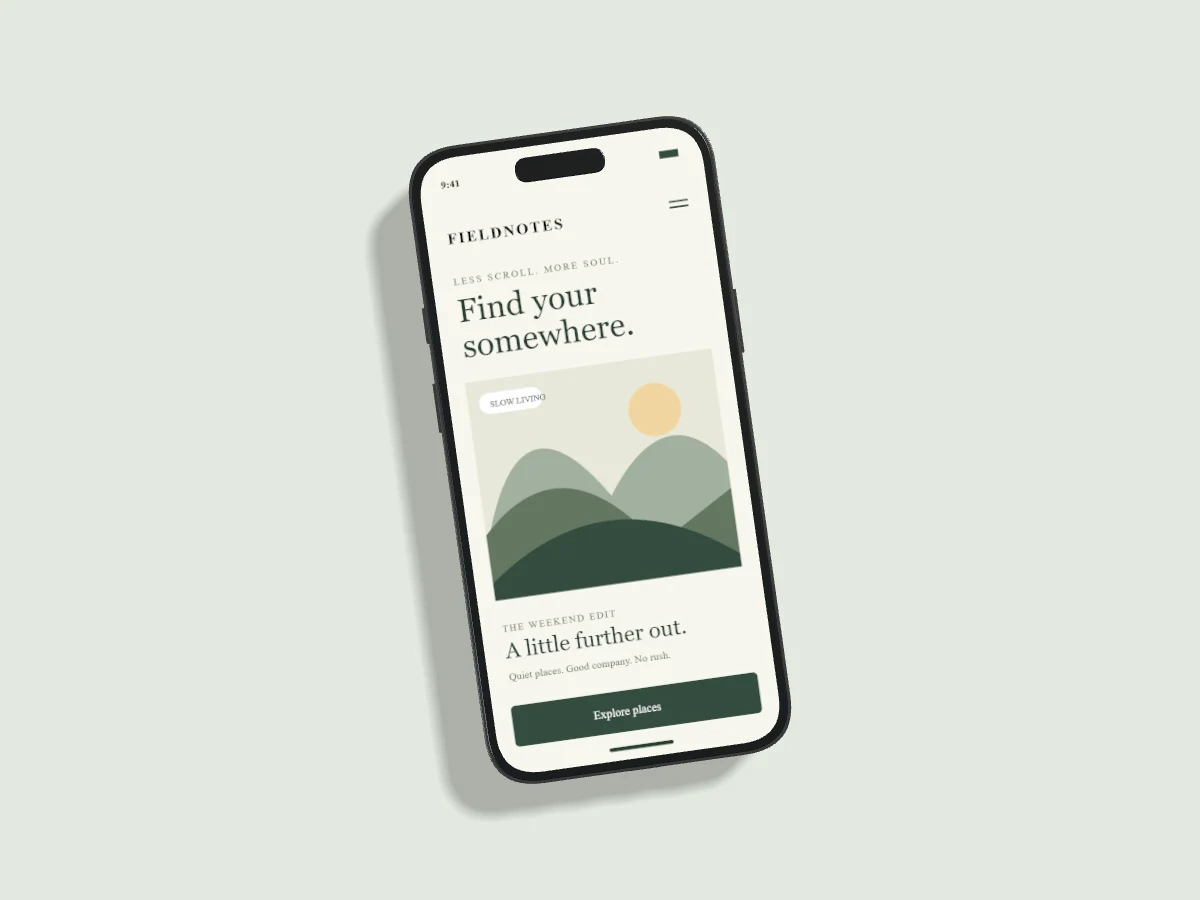
A mockup helps someone understand your interface in context. Start with a clear screenshot of the product you built, then give it a device frame and a composition that keeps the screen readable.
Start with a clean screenshot
Capture your interface at its intended viewport. Use PNG for small interface text, icons and flat colors. Remove personal notifications and real customer information before uploading. A screenshot with the same aspect ratio as your chosen screen needs less cropping.
Choose the device and finish
Open the still-image editor and choose an iPhone composition. In Device & style, select the model and a manufacturer-named finish. Pixmock uses original model-inspired geometry; the color swatches approximate how materials look on screen. They are not color matching specifications or licensed manufacturer CAD.
Upload, drop or paste your screenshot onto the selected device. Fill covers the screen and may crop edges. Fit preserves the whole screenshot and can leave space. Horizontal crop, screen position and zoom let you choose exactly which part stays visible. In a multi-device composition, replace each screen independently.
Give the screen a useful angle
A front view makes a dense interface easy to read. A moderate side turn shows device depth without sacrificing much screen area. Keep rotation restrained when small labels matter. Pixmock limits tilt and turn to front-facing angles, so you cannot rotate a screen into a rear product shot.
For paired devices, enable Apply angle to all devices. Tilt, turn, lift and presets then affect visible, unlocked device layers together. Lock any layer that should keep its pose. Moving the light direction changes the shadow direction for the whole scene.
Export for the destination
Use PNG when you need transparent backgrounds or sharp interface edges. JPEG suits opaque images where file size matters. WebP offers a useful balance for web pages. Check the exported image at its actual display size before publishing; a beautiful full-size canvas can still become unreadable in a small card.
Free includes exactly three distinct completed still-image exports per UTC month. Failed renders do not use that allowance, and downloading the same completed image again does not use another export. Video editing and MP4 exports require Pro. Exporting never saves a cloud project: Pro users choose Save to Cloud separately.