
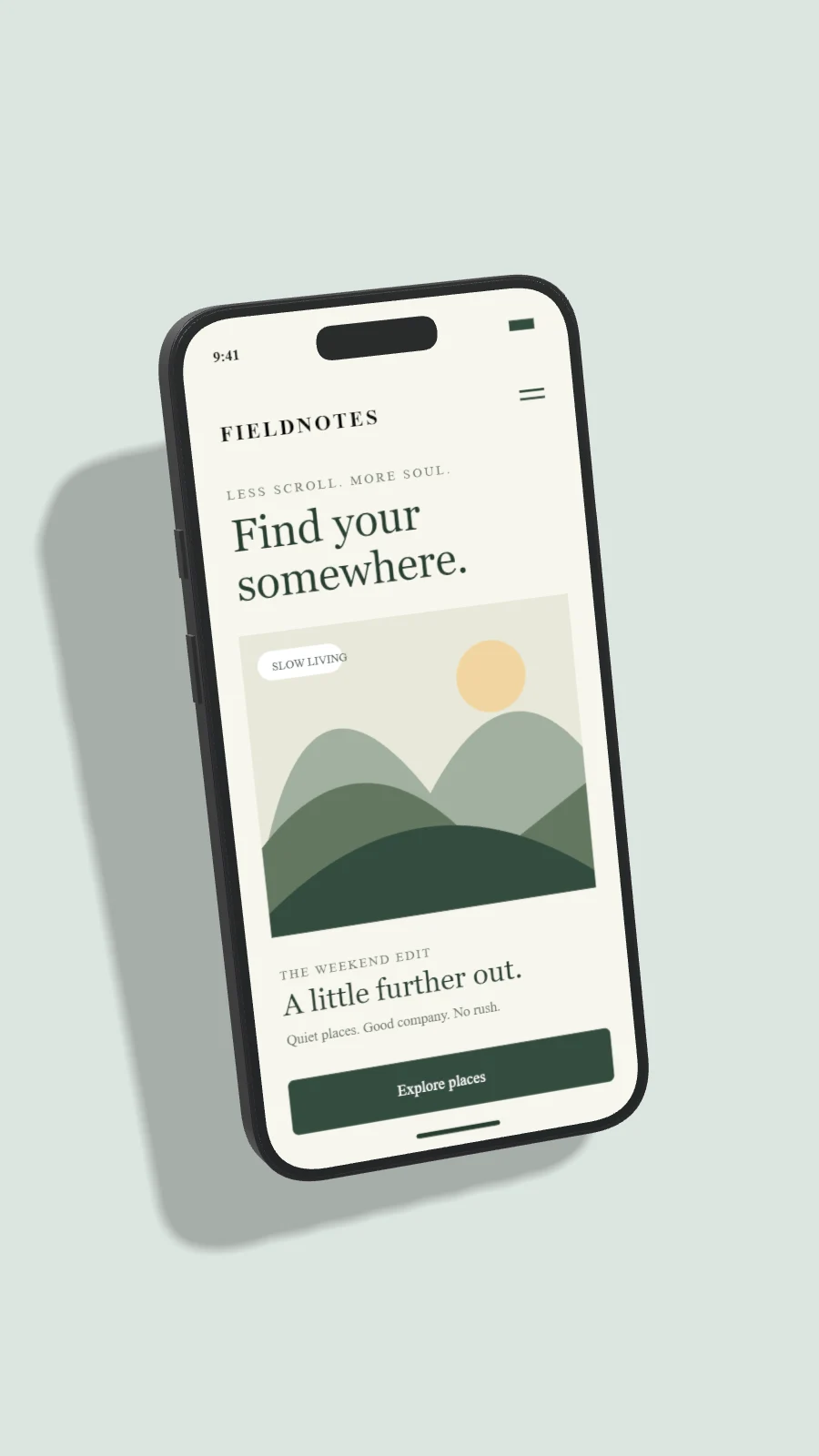
A marketing mockup and an app store submission serve different purposes. A mockup shows your app in context. A store screenshot must meet the current dimensions, content rules and device requirements of the store receiving it. Plan them as related assets with separate checks.
Start from real app states
Capture the actual interface at representative states. Use readable sample content and avoid real account information. Do not invent a feature in a marketing screen that the released app cannot perform. Keep the same visual language across the website, store listing and onboarding.
Check current store requirements
Apple and Google update screenshot specifications. Consult the official App Store Connect and Google Play Console documentation for the exact device class, dimensions, permitted overlays and minimum asset count. A 9:16 mockup canvas is useful for marketing, but it is not a promise that a store will accept the file.
Make one point per image
Choose a feature and show the screen state that supports it. A short caption outside the device may help on your own landing page. Keep the screenshot large enough that a user can recognize the interface. Avoid compressing five messages into one small phone frame.
Build a consistent sequence
Use matching finishes, lighting and background colors across the set. Change the screen content and explanatory caption while keeping the visual structure familiar. If a composition uses multiple devices, check it at its final display size. Each additional screen reduces the area available to the others.
Verify destination and rights
Use platform trademarks and device imagery only as permitted by the relevant guidelines. Pixmock's frames are original model-inspired illustrations, not official store marketing assets. Export your presentation in a format the destination supports, then inspect it after upload because platforms may resize or recompress it. Keep an editable source so corrections do not require rebuilding every image.